> ## Documentation Index
> Fetch the complete documentation index at: https://developers.lighton.ai/llms.txt
> Use this file to discover all available pages before exploring further.
# Microsoft Entra Configuration
> Step-by-step guide to configure the Console SAML SSO with Microsoft EntraID
This guide connects a Microsoft Entra ID tenant to Console with SAML 2.0, so users sign in with their Microsoft account. It keeps the default claims Entra creates for a new application. Console identifies each user by their Entra object ID, so later changes to their email or name never break the link.
Two people are involved:
* **Entra administrator**: creates the Enterprise Application and assigns users. Needs the Cloud Application Administrator role or higher.
* **Console administrator**: creates the SAML Social Application in the Console admin (Django admin → Social applications).
| Value | Example | Chosen by |
| :- | :- | :- |
| Console host | `https://console.example.com` | Console administrator |
| Client ID (SAML identifier) | `acme-entra-sso` | Console administrator. Lowercase letters, digits and dashes; it appears in the URLs. |
| Entra tenant ID | `4eb1dc68-1234-5abc-1234-1a1234b12cd3` | Entra (read-only) |
| Entra application ID | `775f0e7b-3c72-4da2-b8ef-0e41a70ae33c` | Entra (read-only) |
`` **is the company name in slug form**., as it appears in the company's Console login URL (for example `entraid-sso-demo`)
The rest of this guide writes these as ``, ``, `` and ``.
## Prerequisites : enable SSO on the Console instance
SSO sign-in only works once the instance-wide config key `SSO` is `True`. A Console instance administrator sets these keys in the Console admin, under **Config key values** (authentication category):
| Config key | Set to | Effect |
| :- | :- | :- |
| `SSO` | `True` (required) | Global switch for company SAML and OIDC sign-in. When `False`, the SSO button is hidden, the company login page returns "No SSO provider matches this company", and SSO redirects return 404. |
| `SSO_LDAP_SIGNUP` | `True` (optional) | Allows SSO to create accounts on first sign-in. The company's **Auto provision external users** setting must also be on. Leave `False` if users are created or invited beforehand. |
Company settings, in the Console admin under **Companies**:
* **Auto provision external users**: turn on together with `SSO_LDAP_SIGNUP` to create accounts automatically.
* **Login method**: set to **Single Sign On** to require SSO and block password sign-in for the company's users. Leave it on **Password** while you test.
Each company needs exactly one Console SSO application. The company login page is found from the company name in slug form, and two applications for the same company make it return the same "not found" error.
## Step 1 : Create the Enterprise Application in Entra
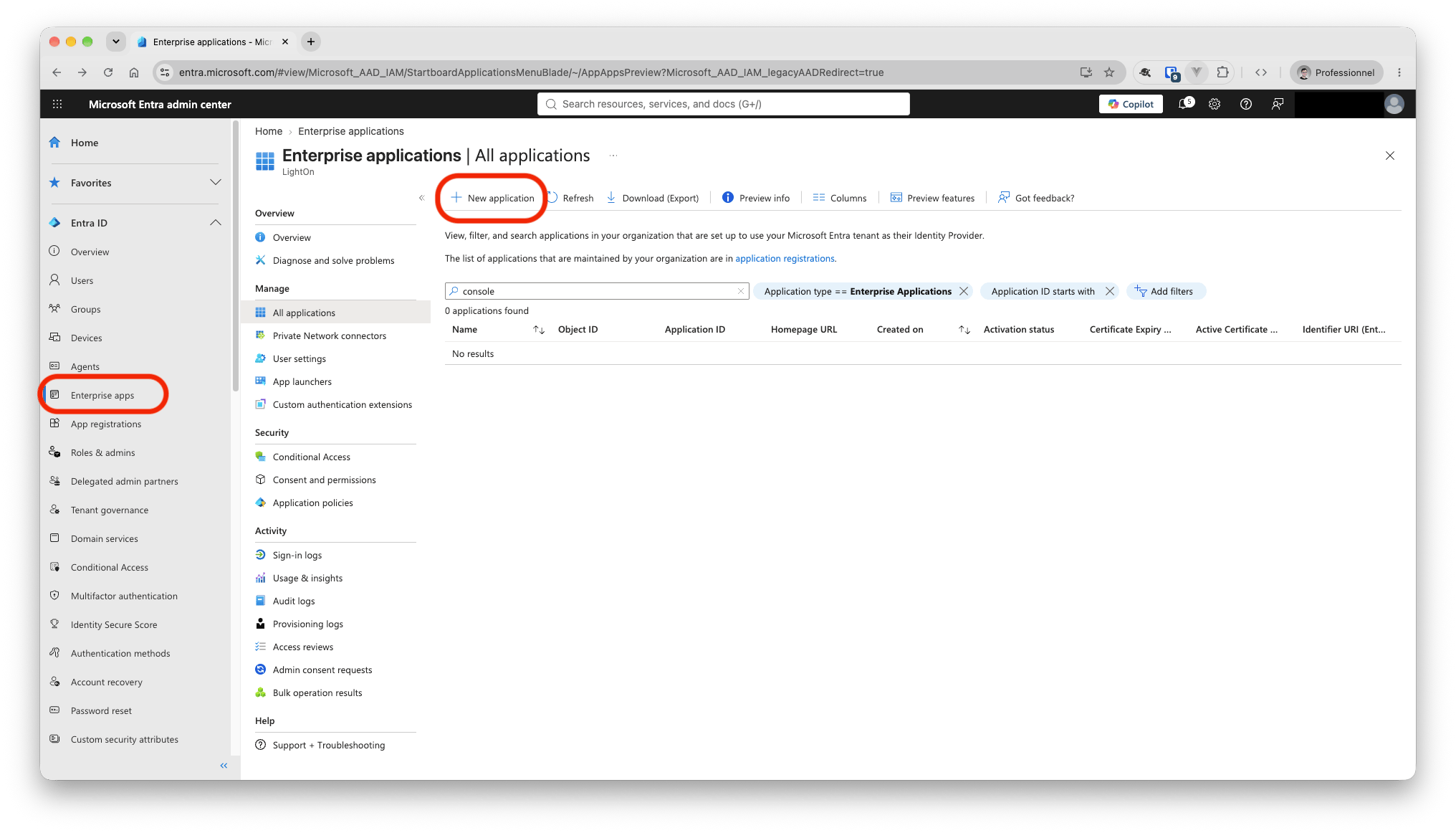
1. In the [Microsoft Entra admin center](https://entra.microsoft.com), go to **Identity → Applications → Enterprise applications**.
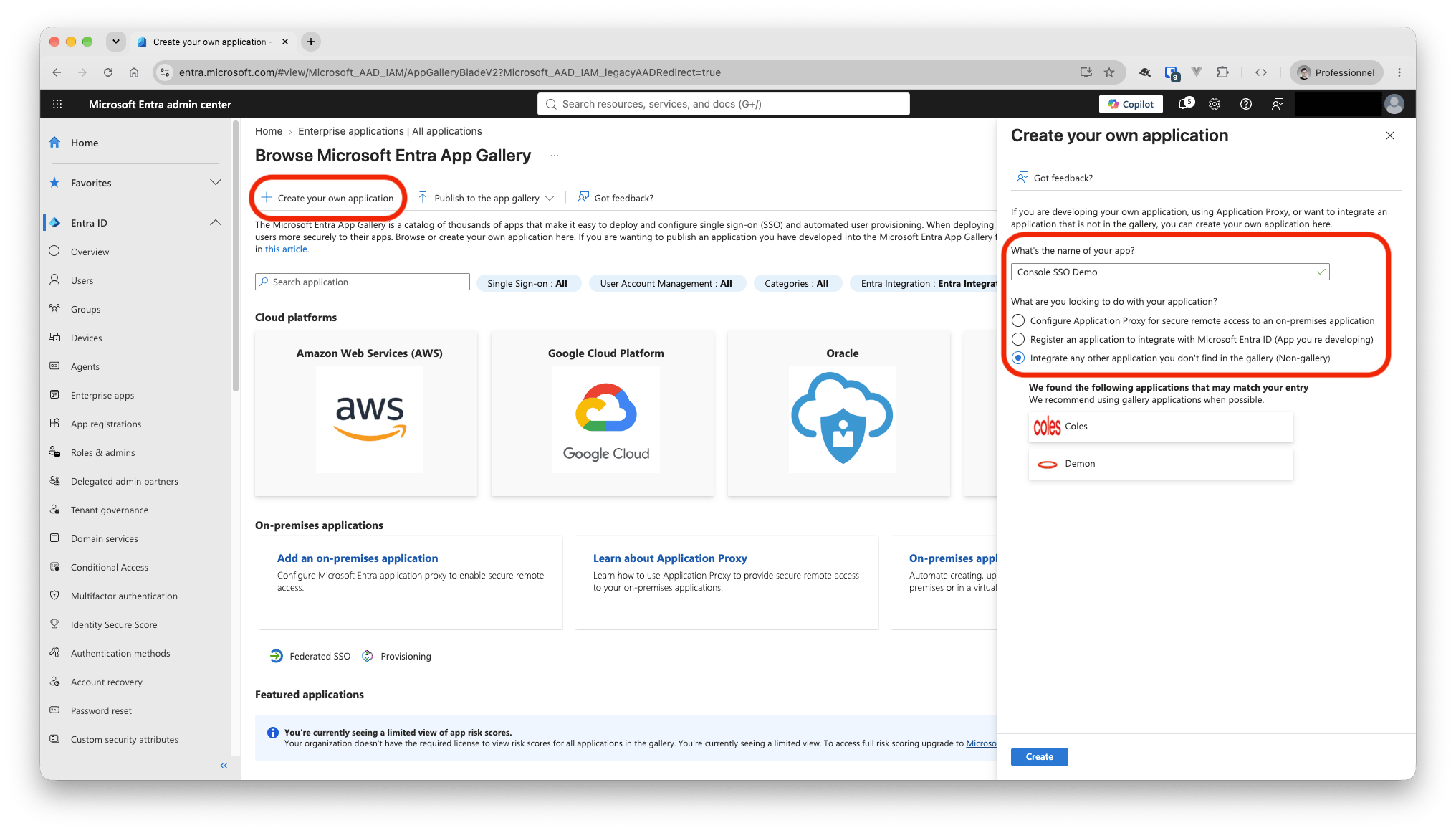
2. Click **New application → Create your own application**.
3. Enter a name, for example `Console SSO Demo`, and choose **Integrate any other application you don't find in the gallery (Non-gallery)**. Click **Create**.
4. In the new application, open **Single sign-on** and choose **SAML**.
 ## Step 2 : Basic SAML Configuration
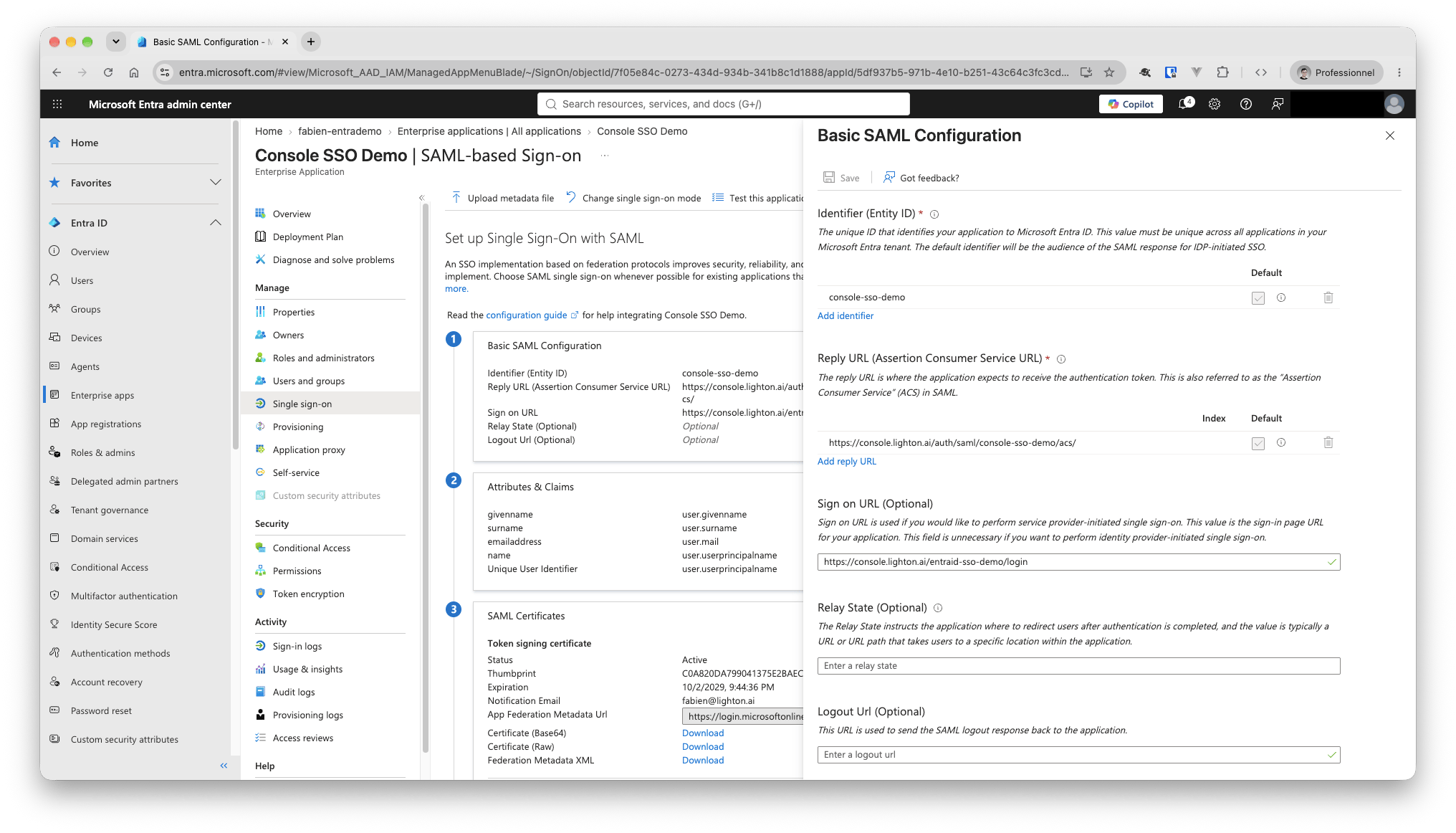
On the SAML page, edit **Basic SAML Configuration** and set:
| Entra field | Value | Notes |
| :- | :- | :- |
| Identifier (Entity ID) | `` | Must exactly match `sp.entity_id` in the Console settings (Step 5). Mark it as **Default**. |
| Reply URL (Assertion Consumer Service URL) | `https:///auth/saml//acs/` | Keep the trailing slash. Uses the Console **Client ID**, not the provider ID. |
| Sign on URL (optional) | `https:////login` | Lets users start sign-in from the My Apps portal. |
| Relay State, Logout URL | leave empty | |
Save. Leave **SAML Certificates** as they are: Console reads the signing certificate from the federation metadata URL.
## Step 2 : Basic SAML Configuration
On the SAML page, edit **Basic SAML Configuration** and set:
| Entra field | Value | Notes |
| :- | :- | :- |
| Identifier (Entity ID) | `` | Must exactly match `sp.entity_id` in the Console settings (Step 5). Mark it as **Default**. |
| Reply URL (Assertion Consumer Service URL) | `https:///auth/saml//acs/` | Keep the trailing slash. Uses the Console **Client ID**, not the provider ID. |
| Sign on URL (optional) | `https:////login` | Lets users start sign-in from the My Apps portal. |
| Relay State, Logout URL | leave empty | |
Save. Leave **SAML Certificates** as they are: Console reads the signing certificate from the federation metadata URL.
 ## Step 3 : Attributes & Claims
Keep the defaults Entra creates for a new application. Don't add, rename or delete claims.
| Claim name | Source attribute | Used by Console as |
| :- | :- | :- |
| Unique User Identifier (Name ID), format *Email address* | `user.userprincipalname` | Email, only when the `emailaddress` claim is missing |
| `http://schemas.xmlsoap.org/ws/2005/05/identity/claims/emailaddress` | `user.mail` | Email |
| `http://schemas.xmlsoap.org/ws/2005/05/identity/claims/givenname` | `user.givenname` | First name |
| `http://schemas.xmlsoap.org/ws/2005/05/identity/claims/surname` | `user.surname` | Last name |
| `http://schemas.xmlsoap.org/ws/2005/05/identity/claims/name` | `user.userprincipalname` | Not used |
| `http://schemas.microsoft.com/identity/claims/objectidentifier` | built in, not listed on this page | Account identifier |
## Step 3 : Attributes & Claims
Keep the defaults Entra creates for a new application. Don't add, rename or delete claims.
| Claim name | Source attribute | Used by Console as |
| :- | :- | :- |
| Unique User Identifier (Name ID), format *Email address* | `user.userprincipalname` | Email, only when the `emailaddress` claim is missing |
| `http://schemas.xmlsoap.org/ws/2005/05/identity/claims/emailaddress` | `user.mail` | Email |
| `http://schemas.xmlsoap.org/ws/2005/05/identity/claims/givenname` | `user.givenname` | First name |
| `http://schemas.xmlsoap.org/ws/2005/05/identity/claims/surname` | `user.surname` | Last name |
| `http://schemas.xmlsoap.org/ws/2005/05/identity/claims/name` | `user.userprincipalname` | Not used |
| `http://schemas.microsoft.com/identity/claims/objectidentifier` | built in, not listed on this page | Account identifier |
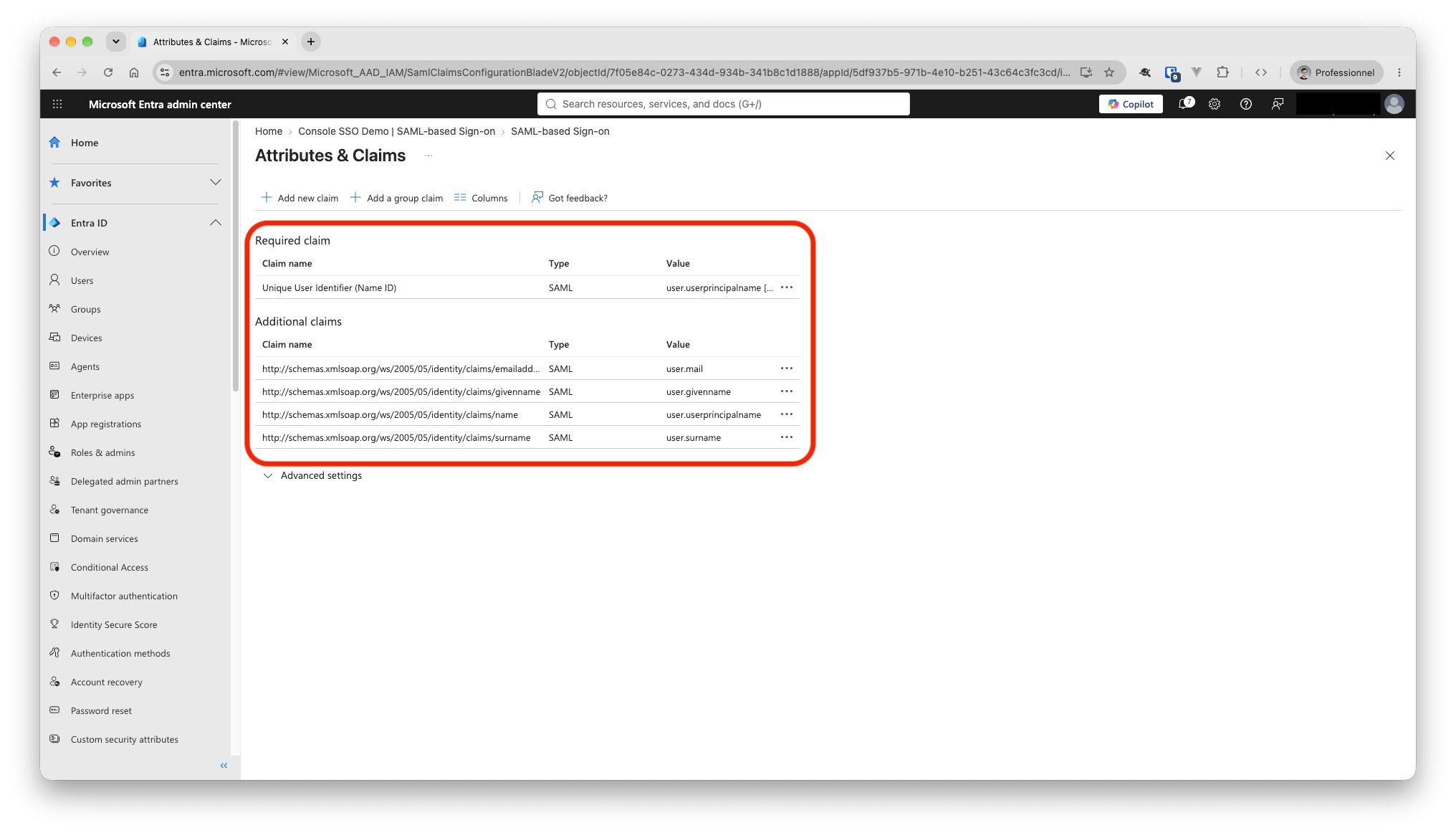
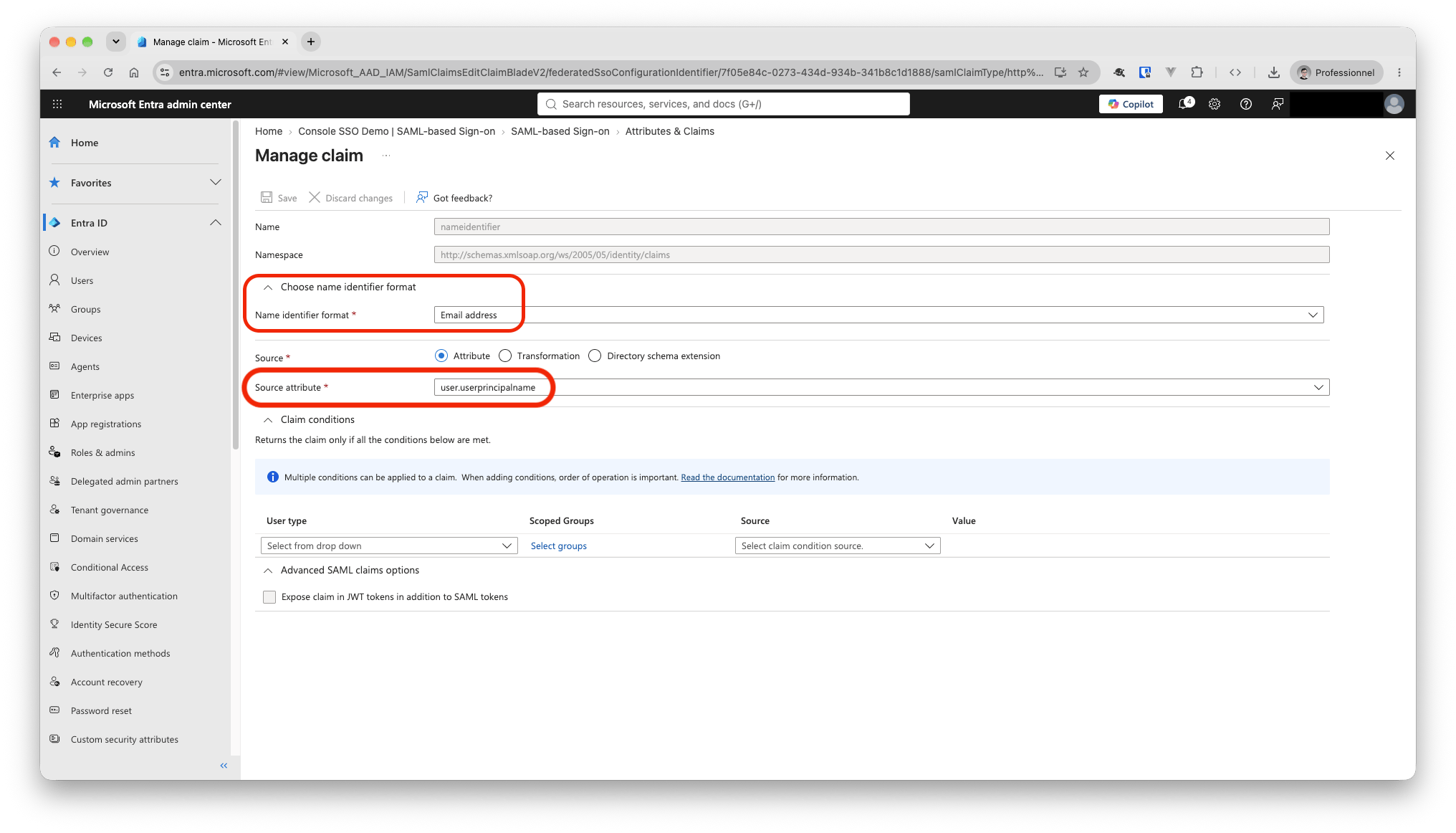 Entra adds `objectidentifier` (with `tenantid`, `identityprovider` and `authnmethodsreferences`) to every token automatically. You don't need to configure it.
**Check user emails.** Entra omits a claim whose source attribute is empty.
Entra adds `objectidentifier` (with `tenantid`, `identityprovider` and `authnmethodsreferences`) to every token automatically. You don't need to configure it.
**Check user emails.** Entra omits a claim whose source attribute is empty.
If a user's **Email** (`mail`) is blank, Console falls back to the Name ID (the UPN).
Make sure each user's `mail` or UPN is the address they use in Console: **Users → the user → Properties → Contact information → Email**.
## Step 4 : Collect the Entra values and assign users
The Entra administrator sends these two values from the SAML page to the Console administrator:
| Entra field | Where | Example |
| :- | :- | :- |
| Microsoft Entra Identifier | Section 4, *Set up …* | `https://sts.windows.net//` |
| App Federation Metadata Url | Section 3, *SAML Certificates* | `https://login.microsoftonline.com//federationmetadata/2007-06/federationmetadata.xml?appid=` |
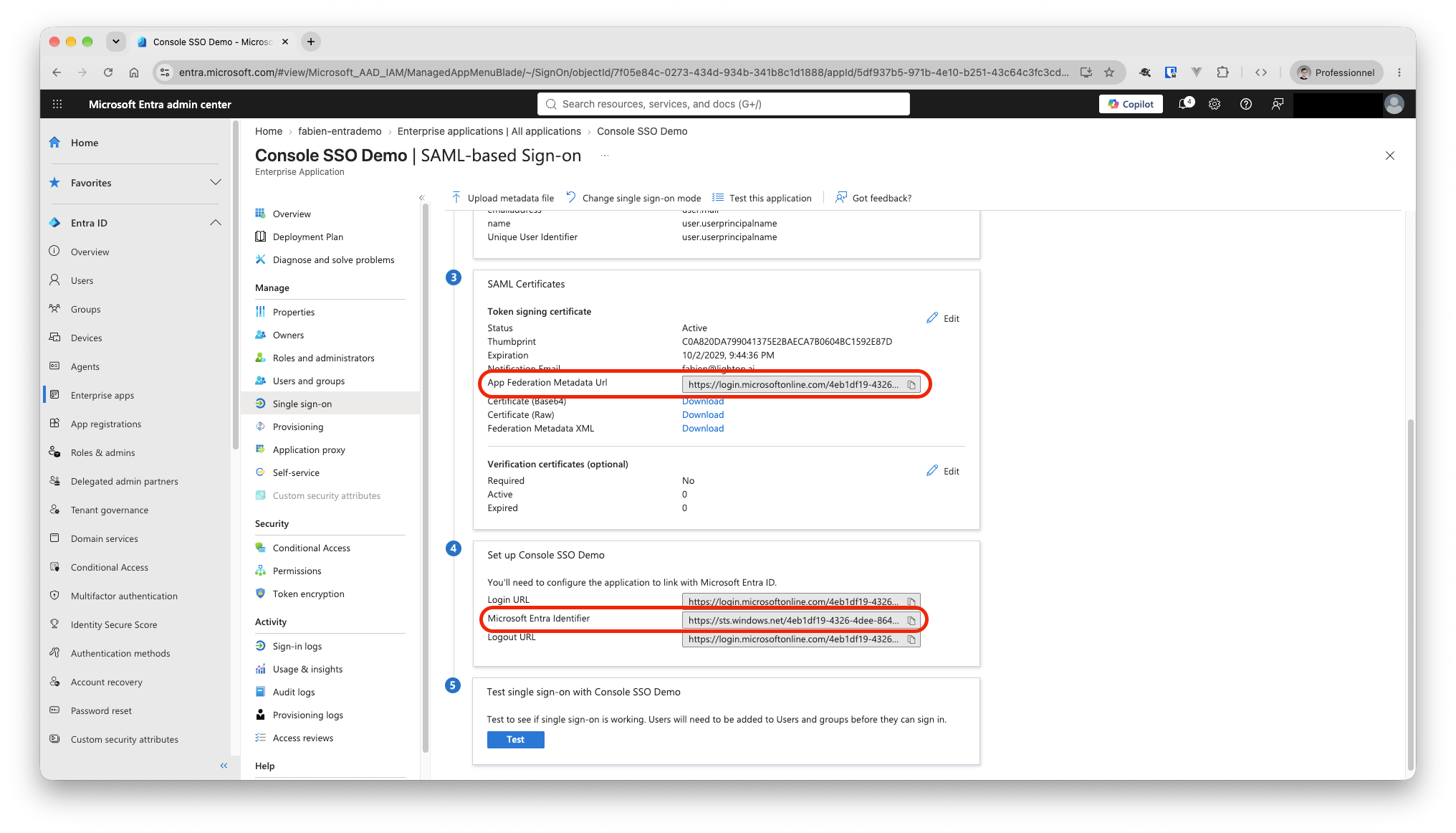 Copy the Microsoft Entra Identifier exactly, **including the trailing slash.**
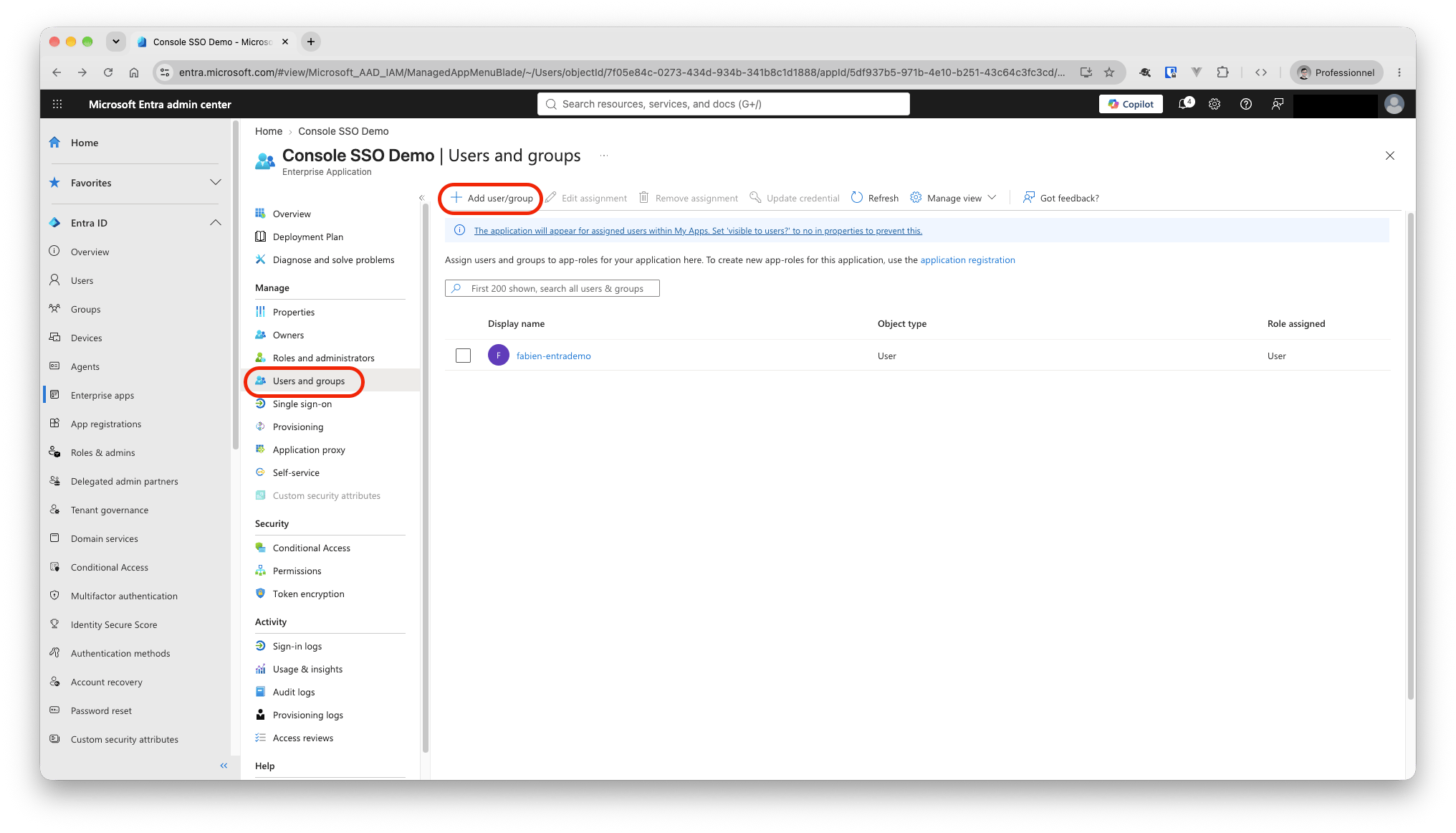
Then assign who may sign in: **Users and groups → Add user/group**.
Copy the Microsoft Entra Identifier exactly, **including the trailing slash.**
Then assign who may sign in: **Users and groups → Add user/group**.
A user who isn't assigned gets an Entra error (AADSTS50105) before reaching Console.
 ## Step 5 : Configure the Social Application in Console
In the Console Django admin, open **Social applications → Add** and fill in:
| Field | Value |
| :- | :- |
| Provider | `SAML` |
| Provider ID | A unique slug, for example `acme-entra-sso` |
| Name | An internal label shown only in the Console admin, for example `Acme Entra SSO`. The company login page shows the company name instead. |
| Company | The customer's company |
| Application | `Console` |
| Client ID | ``, the same value as in Steps 2 and 3 |
| Secret | leave empty |
Set **Settings** to the JSON below, replacing the placeholders:
```json theme={null}
{
"sp": {"entity_id": ""},
"idp": {
"entity_id": "https://sts.windows.net//",
"metadata_url": "https://login.microsoftonline.com//federationmetadata/2007-06/federationmetadata.xml?appid="
},
"attribute_mapping": {
"uid": "http://schemas.microsoft.com/identity/claims/objectidentifier",
"email": "http://schemas.xmlsoap.org/ws/2005/05/identity/claims/emailaddress",
"first_name": "http://schemas.xmlsoap.org/ws/2005/05/identity/claims/givenname",
"last_name": "http://schemas.xmlsoap.org/ws/2005/05/identity/claims/surname"
}
}
```
| Key | Must equal |
| :- | :- |
| `sp.entity_id` | Entra **Identifier (Entity ID)** |
| `idp.entity_id` | Entra **Microsoft Entra Identifier** |
| `idp.metadata_url` | Entra **App Federation Metadata Url** |
## Step 5 : Configure the Social Application in Console
In the Console Django admin, open **Social applications → Add** and fill in:
| Field | Value |
| :- | :- |
| Provider | `SAML` |
| Provider ID | A unique slug, for example `acme-entra-sso` |
| Name | An internal label shown only in the Console admin, for example `Acme Entra SSO`. The company login page shows the company name instead. |
| Company | The customer's company |
| Application | `Console` |
| Client ID | ``, the same value as in Steps 2 and 3 |
| Secret | leave empty |
Set **Settings** to the JSON below, replacing the placeholders:
```json theme={null}
{
"sp": {"entity_id": ""},
"idp": {
"entity_id": "https://sts.windows.net//",
"metadata_url": "https://login.microsoftonline.com//federationmetadata/2007-06/federationmetadata.xml?appid="
},
"attribute_mapping": {
"uid": "http://schemas.microsoft.com/identity/claims/objectidentifier",
"email": "http://schemas.xmlsoap.org/ws/2005/05/identity/claims/emailaddress",
"first_name": "http://schemas.xmlsoap.org/ws/2005/05/identity/claims/givenname",
"last_name": "http://schemas.xmlsoap.org/ws/2005/05/identity/claims/surname"
}
}
```
| Key | Must equal |
| :- | :- |
| `sp.entity_id` | Entra **Identifier (Entity ID)** |
| `idp.entity_id` | Entra **Microsoft Entra Identifier** |
| `idp.metadata_url` | Entra **App Federation Metadata Url** |
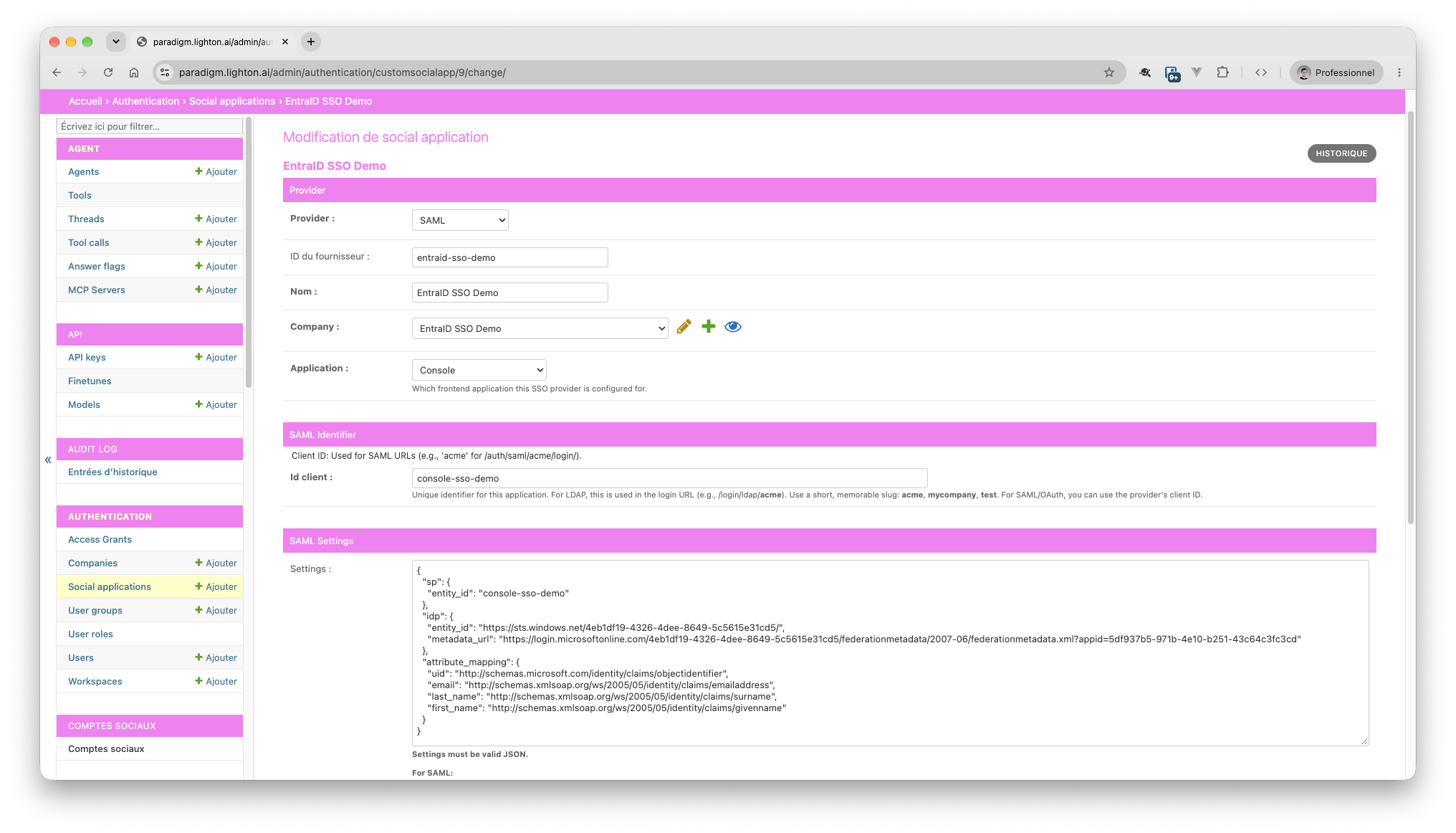 The admin form checks only `sp.entity_id` and `idp.entity_id`. A typo in a claim name saves without an error and leaves that field empty, so copy the claim names exactly.
**Account creation.** On first sign-in, Console links the user to an existing account with the same email in this company.
The admin form checks only `sp.entity_id` and `idp.entity_id`. A typo in a claim name saves without an error and leaves that field empty, so copy the claim names exactly.
**Account creation.** On first sign-in, Console links the user to an existing account with the same email in this company.
To create missing users automatically, enable both the instance config key `SSO_LDAP_SIGNUP` and the company's **Auto provision external users** setting.
Otherwise, create or invite users before they sign in.
## Step 6 : Test the sign-in
1. In Entra, open **Single sign-on → Test this application** and sign in as an assigned user.
2. In a private browser window, open the Console login page, `https:///login`, click on `SSO d'entreprise`, write slugified company name (`My Company` would become `my-company`) then click on `Continuer` to arrive on the dedicated company SSO login page. Click on `Se Connecter` to start the login process with EntraID.
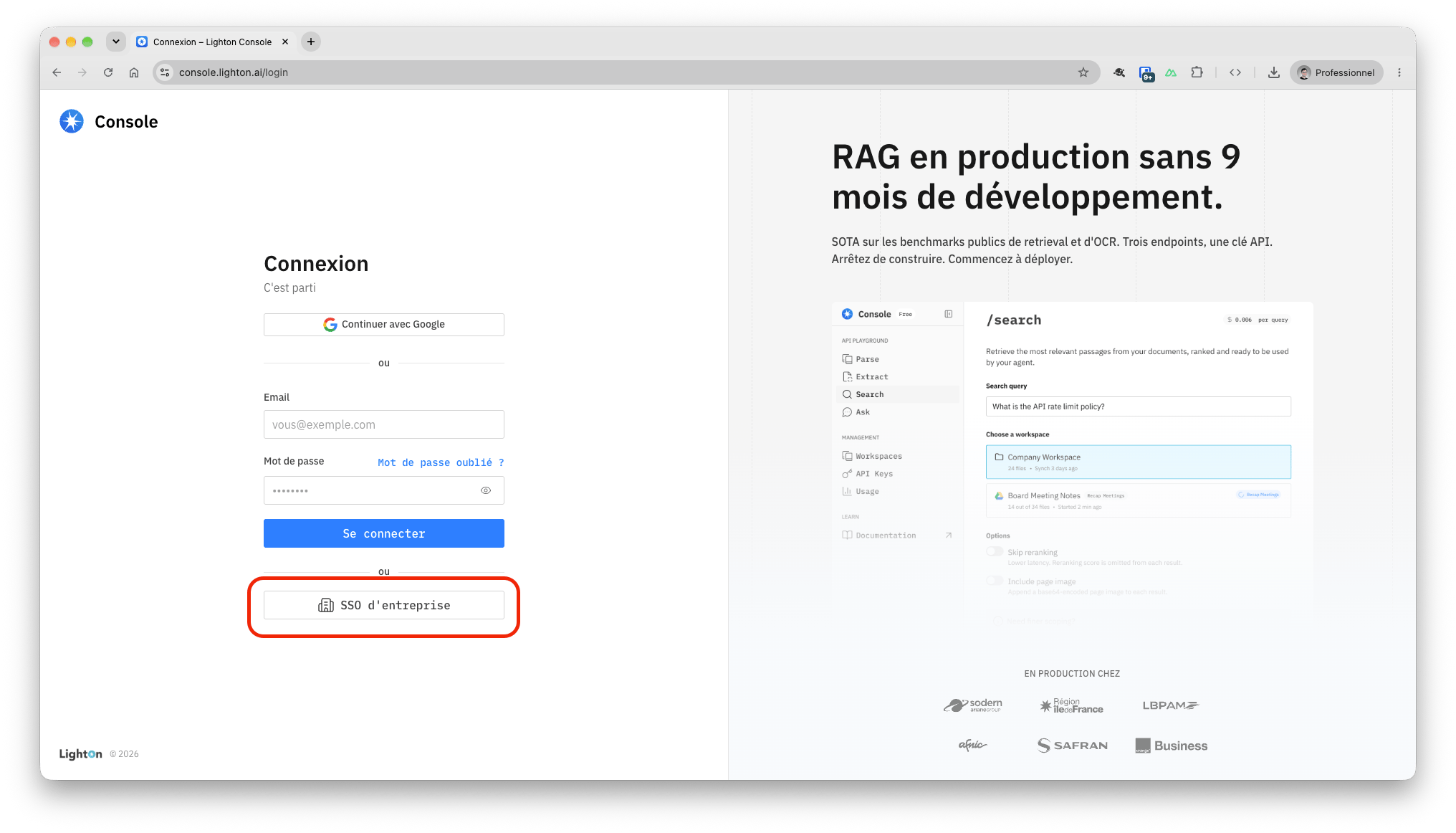
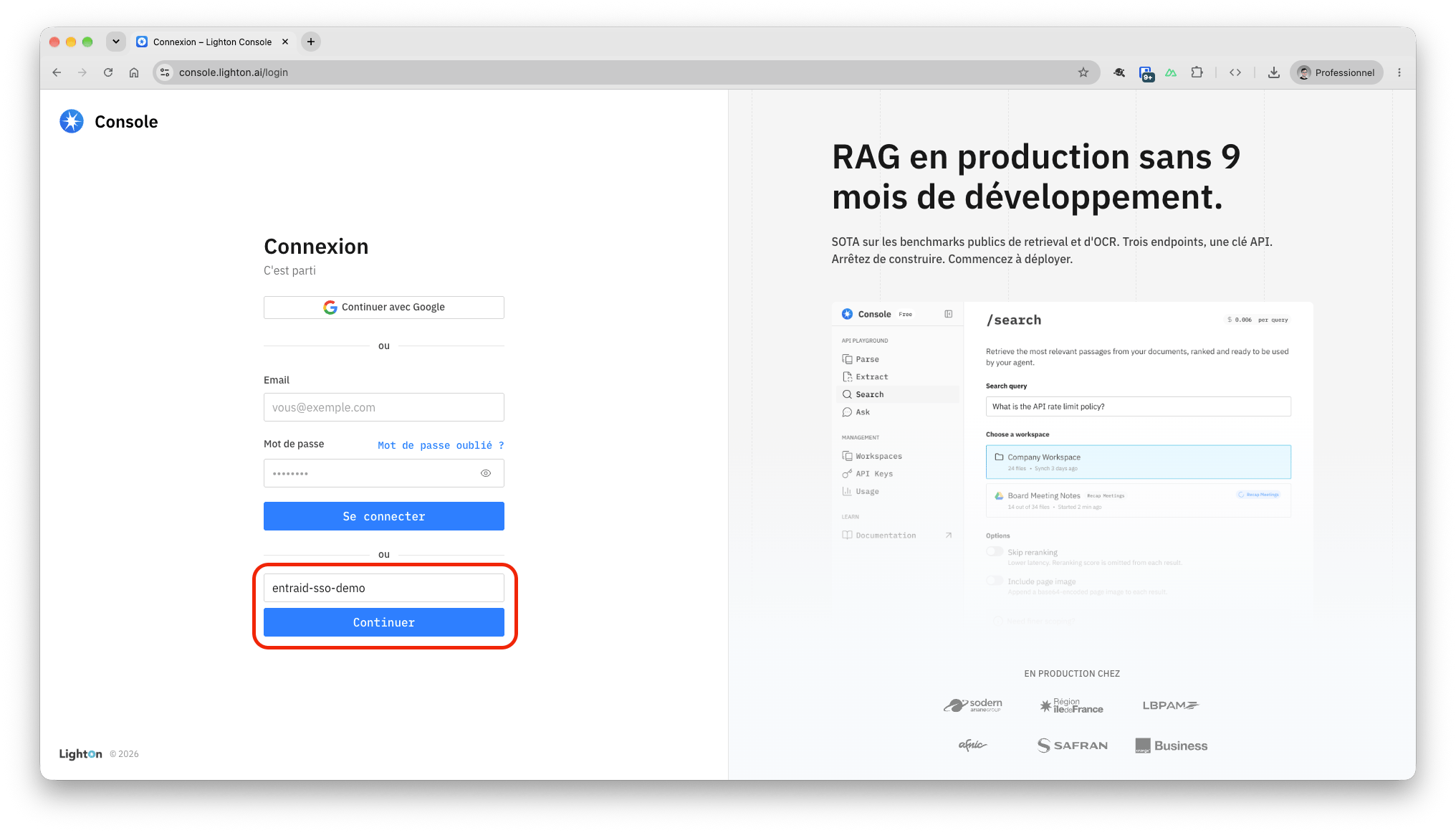
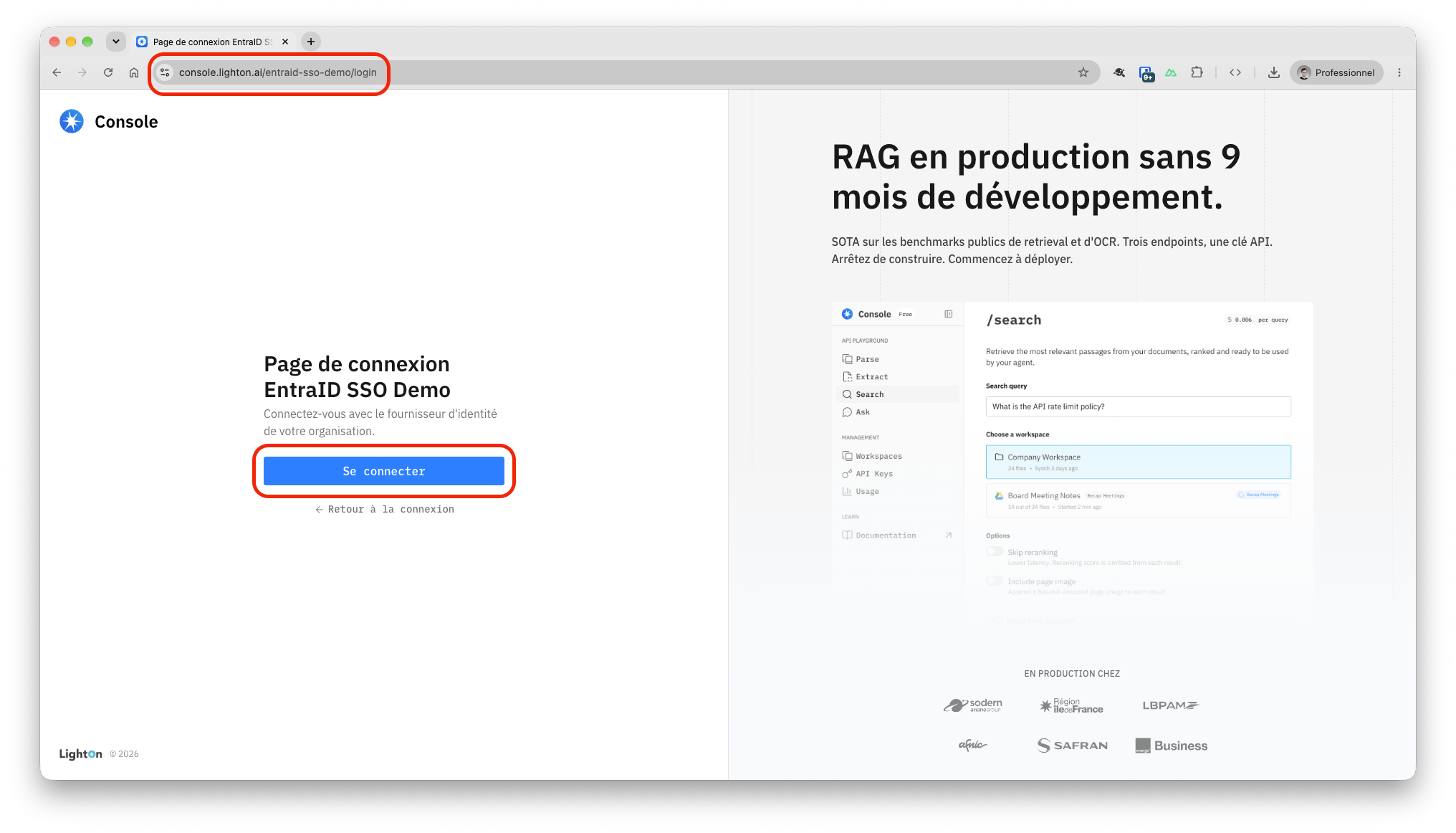 As you can see, the button to start the SSO authentication is the one you put as login URL in the SSO configuration in EntraID.
What happens on a user's first sign-in:
| Situation | Result |
| :- | :- |
| An account with that email exists in the company | Linked, then signed in |
| No account, and auto-provisioning is enabled | Account created in the company |
| No account, and auto-provisioning is disabled | Refused |
| The email belongs to an account in another company | Refused |
Later sign-ins match on the Entra object ID, not the email.
## Debugging advice
If sign-in still fails, SAML-tracer shows what your browser exchanges with Microsoft and Console. It's a free browser extension, and you don't need admin rights to use it.
* [SAML-tracer for Chrome](https://chromewebstore.google.com/detail/saml-tracer/mpdajninpobndbfcldcmbpnnbhibjmch)
* [SAML-tracer for Firefox](https://addons.mozilla.org/firefox/addon/saml-tracer/)
As you can see, the button to start the SSO authentication is the one you put as login URL in the SSO configuration in EntraID.
What happens on a user's first sign-in:
| Situation | Result |
| :- | :- |
| An account with that email exists in the company | Linked, then signed in |
| No account, and auto-provisioning is enabled | Account created in the company |
| No account, and auto-provisioning is disabled | Refused |
| The email belongs to an account in another company | Refused |
Later sign-ins match on the Entra object ID, not the email.
## Debugging advice
If sign-in still fails, SAML-tracer shows what your browser exchanges with Microsoft and Console. It's a free browser extension, and you don't need admin rights to use it.
* [SAML-tracer for Chrome](https://chromewebstore.google.com/detail/saml-tracer/mpdajninpobndbfcldcmbpnnbhibjmch)
* [SAML-tracer for Firefox](https://addons.mozilla.org/firefox/addon/saml-tracer/)
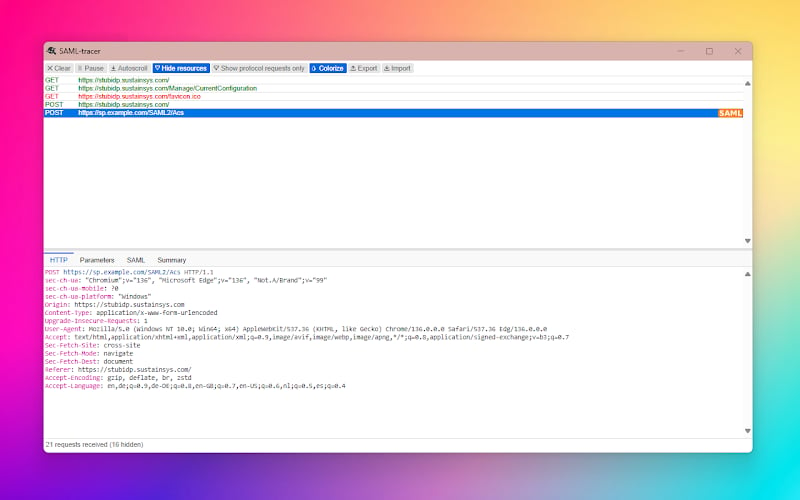 **Record a sign-in**
1. Click the SAML-tracer icon in your browser toolbar to open its window.
2. In your main browser window, open `https:////login` and sign in with Microsoft.
3. In SAML-tracer, select the rows tagged **SAML** and open the **SAML** tab to read each message.
**What to check**
| Check | What you should see | If not |
| :- | :- | :- |
| 1. Console sends the request to Microsoft | A request to `login.microsoftonline.com//saml2`. Its `Issuer` is `` and its `AssertionConsumerServiceURL` is the Reply URL. | Compare Step 2 with Step 5 |
| 2. Microsoft identifies the user by email | In the response sent to `/auth/saml//acs/`, the `NameID` in the `Subject` is the user's email | The user's email is empty in Entra (Step 3) |
| 3. Microsoft sends the user's details | The response lists `http://schemas.microsoft.com/identity/claims/objectidentifier` and `http://schemas.xmlsoap.org/ws/2005/05/identity/claims/emailaddress` | Check the claims (Step 3) and their spelling in `attribute_mapping` (Step 5) |
**Sharing the recording with support**
Still stuck? Use SAML-tracer's **Export** button and send the file to LightOn support with a short description of the problem.
A recording contains personal and security data: the user's email and name, a signed sign-in message from Microsoft, and possibly session cookies. Handle it like a password:
* Record with a test account when you can.
* In the export dialog, choose to mask or remove cookie values.
* Send it only to LightOn support, through your usual support channel. Never post it in a public forum, a shared chat or a ticket that other people can read.
* After recording, sign out of Console and delete the file once the issue is resolved.
This documentation is built and hosted on [Mintlify](https://mintlify.com), a developer documentation platform.
**Record a sign-in**
1. Click the SAML-tracer icon in your browser toolbar to open its window.
2. In your main browser window, open `https:////login` and sign in with Microsoft.
3. In SAML-tracer, select the rows tagged **SAML** and open the **SAML** tab to read each message.
**What to check**
| Check | What you should see | If not |
| :- | :- | :- |
| 1. Console sends the request to Microsoft | A request to `login.microsoftonline.com//saml2`. Its `Issuer` is `` and its `AssertionConsumerServiceURL` is the Reply URL. | Compare Step 2 with Step 5 |
| 2. Microsoft identifies the user by email | In the response sent to `/auth/saml//acs/`, the `NameID` in the `Subject` is the user's email | The user's email is empty in Entra (Step 3) |
| 3. Microsoft sends the user's details | The response lists `http://schemas.microsoft.com/identity/claims/objectidentifier` and `http://schemas.xmlsoap.org/ws/2005/05/identity/claims/emailaddress` | Check the claims (Step 3) and their spelling in `attribute_mapping` (Step 5) |
**Sharing the recording with support**
Still stuck? Use SAML-tracer's **Export** button and send the file to LightOn support with a short description of the problem.
A recording contains personal and security data: the user's email and name, a signed sign-in message from Microsoft, and possibly session cookies. Handle it like a password:
* Record with a test account when you can.
* In the export dialog, choose to mask or remove cookie values.
* Send it only to LightOn support, through your usual support channel. Never post it in a public forum, a shared chat or a ticket that other people can read.
* After recording, sign out of Console and delete the file once the issue is resolved.
This documentation is built and hosted on [Mintlify](https://mintlify.com), a developer documentation platform.