> ## Documentation Index
> Fetch the complete documentation index at: https://developers.lighton.ai/llms.txt
> Use this file to discover all available pages before exploring further.
# Searching documents
> Find the most relevant passages in your documents using a natural-language query.
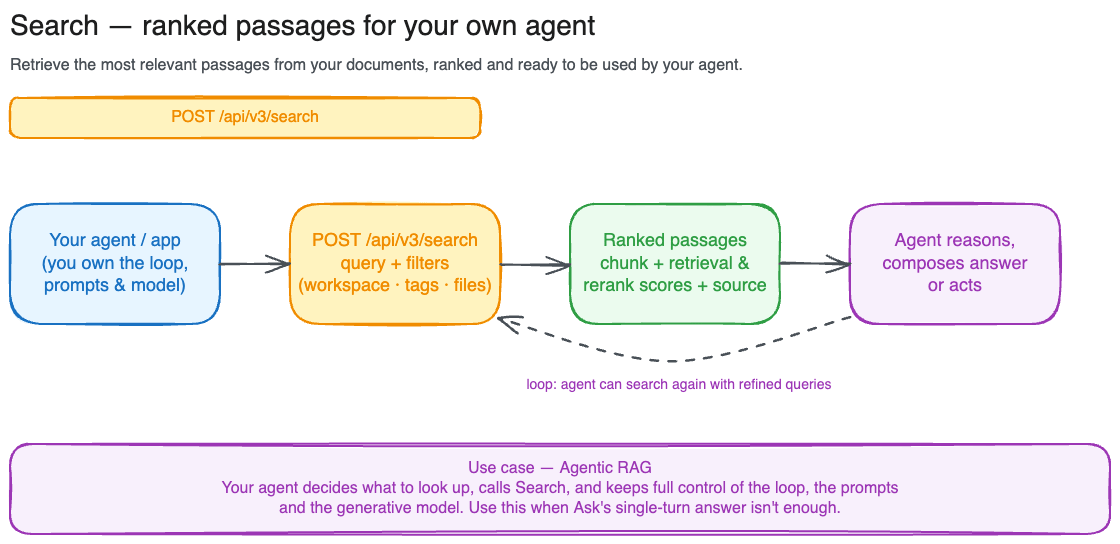 Search is how your application answers questions from documents. Send a query in plain language, get back ranked passages from across your corpus. No SQL, no keyword matching, no index tuning.
Under the hood LightOn runs a hybrid pipeline: vector search for meaning, lexical search for exact terms, then a reranker that scores every candidate against the full query and returns the best results.
This tutorial walks through [`POST /api/v3/search`](/api-reference/search/search-document-chunks). For the full schema and every parameter, see the [API reference](/api-reference/introduction).
## Your first search
If you've already uploaded documents, this is all you need:
```python theme={null}
import requests
response = requests.post(
"https://api.lighton.ai/api/v3/search",
headers={"Authorization": "Bearer $LIGHTON_API_KEY"},
json={"query": "What is the JWT token expiry policy"},
)
for result in response.json()["results"]:
print(result["content"])
print(f" → {result['source']['filename']}, p.{result['source']['page_start']}–{result['source']['page_end']}")
print(f" → score {result['score']:.2f}")
```
By default this searches every document your API key can reach and returns the top 10 results. That's usually a good starting point.
## Scoping to a subset of documents
When you want to limit search to a specific team's workspace, a handful of files, or a tagged collection, use one of the three scoping parameters. `file_id` is mutually exclusive with `workspace_id` and `tag_id`, while `workspace_id` and `tag_id` can be combined.
Best for multi-tenant products where each customer or team has their own workspace.
```python theme={null}
json={
"query": "deployment runbook",
"workspace_id": [12, 15],
}
```
Best when you know exactly which documents are relevant, for example after the user selects files in your UI.
```python theme={null}
json={
"query": "Q4 revenue forecast",
"file_id": [101, 102],
}
```
`file_id` cannot be combined with `workspace_id` or `tag_id`.
Best for curated collections: tag documents at upload time, then search across the collection by tag.
```python theme={null}
json={
"query": "GDPR data retention requirements",
"tag_id": [7],
}
```
## Reading the response
Each result contains:
* **`content`**: the matched passage text. `null` for vision-mode chunks.
* **`score`**: the overall fused relevance score, a single number you rank on.
* **`scores`**: the per-signal breakdown behind that score. See [Understanding the scores](#understanding-the-scores) below.
* **`source`**: where the chunk came from: `file_id`, `filename`, `title`, `mime_type`, `size_bytes`, `page_start`/`page_end`, `total_pages`, `tags`, and `external_metadata` for connector-imported files.
* **`workspace`**: the workspace the document belongs to.
```json theme={null}
{
"results": [
{
"chunk_id": "550e8400-e29b-41d4-a716-446655440000",
"content": "JWT tokens are signed using RS256 and expire after 1 hour.",
"score": 0.87,
"scores": {
"text": 0.91,
"vision": null,
"keyword": 0.43,
"multivector": 12.4,
"relevance": 0.95
},
"source": {
"file_id": 512,
"filename": "auth-system.pdf",
"title": "Authentication System Design",
"mime_type": "pdf",
"size_bytes": 482113,
"page_start": 3,
"page_end": 4,
"total_pages": 12,
"tags": [{"id": 7, "name": "security"}],
"external_metadata": null
},
"workspace": {"id": 42, "name": "Engineering Docs"}
}
]
}
```
## Understanding the scores
`score` is the single number you should rank and threshold on. It's the **fused** result of the whole pipeline: the individual signals are combined and, when reranking runs, calibrated by the cross-encoder. Use it directly unless you have a reason to inspect the parts.
`scores` exposes those individual signals so you can debug *why* a chunk ranked where it did, or build your own re-ranking on top. Each signal is `null` when it didn't apply to that chunk.
| Signal | What it measures | Range | When it's `null` |
| ------------- | ---------------------------------------------------------------------------------------------------------------------------------------------------------------------------------------------------------------------- | --------------------------------- | ------------------------------------------------------- |
| `text` | Dense text-embedding similarity between the query and the chunk (`1 − cosine distance`). The core semantic-match signal. | \~0–1, higher is closer | In vision mode (no text embedding is scored). |
| `vision` | Visual page similarity from the vision embedding — matches layout, diagrams, and scanned content rather than extracted text. | \~0–1, higher is closer | When the document has no vision index. |
| `keyword` | BM25 lexical score — rewards exact term and phrase overlap, the way classic keyword search does. Catches identifiers, codes, and rare terms that embeddings can blur. | ≥0, unbounded, higher is stronger | In vision mode (no text is scored). |
| `multivector` | ColBERT multi-vector (MaxSim) score — a fine-grained token-level match that reranks candidates more precisely than a single embedding. | ≥0, unbounded, higher is stronger | When multi-vector reranking is disabled. |
| `relevance` | Cross-encoder reranker confidence — the model reads the query and chunk together and scores how well the passage actually answers the query. The strongest single signal, and the main driver of `score` when present. | 0–1, higher is more relevant | When `skip_rerank=true` or the reranker is unavailable. |
Only `text`, `keyword`, and `multivector` share a comparable footing within a single response; `relevance` is a calibrated probability and `vision` lives on its own scale. Don't compare raw signal values against each other or across queries — for ranking, always use the top-level `score`.
## Tuning result count and latency
`max_results` (default 10, range 1–50) controls how many ranked chunks come back.
For lower latency, set `skip_rerank: true`. You lose the reranker's quality boost but the pipeline becomes a straight hybrid lookup, and `scores.relevance` will be `null`.
```python theme={null}
json={
"query": "incident response playbook",
"max_results": 5,
"skip_rerank": True,
}
```
## Searching images and diagrams
Switch to vision mode to search documents by their visual content, useful for scanned pages, slide decks, architecture diagrams, or any document where the meaning is in the layout rather than the words.
```python theme={null}
json={
"query": "network topology diagram showing DMZ",
"mode": "vision",
"include_image": True,
"max_results": 3,
}
```
Vision mode requires documents to have been indexed with vision embeddings (`status_vision: "embedded"`). With `include_image: true`, each result includes an `image.b64_content` field with the page rendered as a base64 image. In text mode, the image is fetched from the vision chunk covering the chunk's start page, or an empty string if no vision index exists for that page.
## Narrowing search with metadata filters
If your documents are classified with [Facets](/tutorials/facets/overview), add `content_type` and `attribute` fields to the request body to scope results by metadata. See [Filtering by facets](/tutorials/facets/filter) for worked examples.
## Common errors
| Status | Cause |
| ------ | ----------------------------------------------------------------------------------------------------- |
| `400` | Request body is not parsable JSON |
| `403` | None of the provided filters resolve to authorized resources |
| `422` | Validation error, e.g. `file_id` combined with `workspace_id`/`tag_id`, or `max_results` out of range |
| `429` | Rate limit exceeded |
| `500` | Unexpected server error |
Search is how your application answers questions from documents. Send a query in plain language, get back ranked passages from across your corpus. No SQL, no keyword matching, no index tuning.
Under the hood LightOn runs a hybrid pipeline: vector search for meaning, lexical search for exact terms, then a reranker that scores every candidate against the full query and returns the best results.
This tutorial walks through [`POST /api/v3/search`](/api-reference/search/search-document-chunks). For the full schema and every parameter, see the [API reference](/api-reference/introduction).
## Your first search
If you've already uploaded documents, this is all you need:
```python theme={null}
import requests
response = requests.post(
"https://api.lighton.ai/api/v3/search",
headers={"Authorization": "Bearer $LIGHTON_API_KEY"},
json={"query": "What is the JWT token expiry policy"},
)
for result in response.json()["results"]:
print(result["content"])
print(f" → {result['source']['filename']}, p.{result['source']['page_start']}–{result['source']['page_end']}")
print(f" → score {result['score']:.2f}")
```
By default this searches every document your API key can reach and returns the top 10 results. That's usually a good starting point.
## Scoping to a subset of documents
When you want to limit search to a specific team's workspace, a handful of files, or a tagged collection, use one of the three scoping parameters. `file_id` is mutually exclusive with `workspace_id` and `tag_id`, while `workspace_id` and `tag_id` can be combined.
Best for multi-tenant products where each customer or team has their own workspace.
```python theme={null}
json={
"query": "deployment runbook",
"workspace_id": [12, 15],
}
```
Best when you know exactly which documents are relevant, for example after the user selects files in your UI.
```python theme={null}
json={
"query": "Q4 revenue forecast",
"file_id": [101, 102],
}
```
`file_id` cannot be combined with `workspace_id` or `tag_id`.
Best for curated collections: tag documents at upload time, then search across the collection by tag.
```python theme={null}
json={
"query": "GDPR data retention requirements",
"tag_id": [7],
}
```
## Reading the response
Each result contains:
* **`content`**: the matched passage text. `null` for vision-mode chunks.
* **`score`**: the overall fused relevance score, a single number you rank on.
* **`scores`**: the per-signal breakdown behind that score. See [Understanding the scores](#understanding-the-scores) below.
* **`source`**: where the chunk came from: `file_id`, `filename`, `title`, `mime_type`, `size_bytes`, `page_start`/`page_end`, `total_pages`, `tags`, and `external_metadata` for connector-imported files.
* **`workspace`**: the workspace the document belongs to.
```json theme={null}
{
"results": [
{
"chunk_id": "550e8400-e29b-41d4-a716-446655440000",
"content": "JWT tokens are signed using RS256 and expire after 1 hour.",
"score": 0.87,
"scores": {
"text": 0.91,
"vision": null,
"keyword": 0.43,
"multivector": 12.4,
"relevance": 0.95
},
"source": {
"file_id": 512,
"filename": "auth-system.pdf",
"title": "Authentication System Design",
"mime_type": "pdf",
"size_bytes": 482113,
"page_start": 3,
"page_end": 4,
"total_pages": 12,
"tags": [{"id": 7, "name": "security"}],
"external_metadata": null
},
"workspace": {"id": 42, "name": "Engineering Docs"}
}
]
}
```
## Understanding the scores
`score` is the single number you should rank and threshold on. It's the **fused** result of the whole pipeline: the individual signals are combined and, when reranking runs, calibrated by the cross-encoder. Use it directly unless you have a reason to inspect the parts.
`scores` exposes those individual signals so you can debug *why* a chunk ranked where it did, or build your own re-ranking on top. Each signal is `null` when it didn't apply to that chunk.
| Signal | What it measures | Range | When it's `null` |
| ------------- | ---------------------------------------------------------------------------------------------------------------------------------------------------------------------------------------------------------------------- | --------------------------------- | ------------------------------------------------------- |
| `text` | Dense text-embedding similarity between the query and the chunk (`1 − cosine distance`). The core semantic-match signal. | \~0–1, higher is closer | In vision mode (no text embedding is scored). |
| `vision` | Visual page similarity from the vision embedding — matches layout, diagrams, and scanned content rather than extracted text. | \~0–1, higher is closer | When the document has no vision index. |
| `keyword` | BM25 lexical score — rewards exact term and phrase overlap, the way classic keyword search does. Catches identifiers, codes, and rare terms that embeddings can blur. | ≥0, unbounded, higher is stronger | In vision mode (no text is scored). |
| `multivector` | ColBERT multi-vector (MaxSim) score — a fine-grained token-level match that reranks candidates more precisely than a single embedding. | ≥0, unbounded, higher is stronger | When multi-vector reranking is disabled. |
| `relevance` | Cross-encoder reranker confidence — the model reads the query and chunk together and scores how well the passage actually answers the query. The strongest single signal, and the main driver of `score` when present. | 0–1, higher is more relevant | When `skip_rerank=true` or the reranker is unavailable. |
Only `text`, `keyword`, and `multivector` share a comparable footing within a single response; `relevance` is a calibrated probability and `vision` lives on its own scale. Don't compare raw signal values against each other or across queries — for ranking, always use the top-level `score`.
## Tuning result count and latency
`max_results` (default 10, range 1–50) controls how many ranked chunks come back.
For lower latency, set `skip_rerank: true`. You lose the reranker's quality boost but the pipeline becomes a straight hybrid lookup, and `scores.relevance` will be `null`.
```python theme={null}
json={
"query": "incident response playbook",
"max_results": 5,
"skip_rerank": True,
}
```
## Searching images and diagrams
Switch to vision mode to search documents by their visual content, useful for scanned pages, slide decks, architecture diagrams, or any document where the meaning is in the layout rather than the words.
```python theme={null}
json={
"query": "network topology diagram showing DMZ",
"mode": "vision",
"include_image": True,
"max_results": 3,
}
```
Vision mode requires documents to have been indexed with vision embeddings (`status_vision: "embedded"`). With `include_image: true`, each result includes an `image.b64_content` field with the page rendered as a base64 image. In text mode, the image is fetched from the vision chunk covering the chunk's start page, or an empty string if no vision index exists for that page.
## Narrowing search with metadata filters
If your documents are classified with [Facets](/tutorials/facets/overview), add `content_type` and `attribute` fields to the request body to scope results by metadata. See [Filtering by facets](/tutorials/facets/filter) for worked examples.
## Common errors
| Status | Cause |
| ------ | ----------------------------------------------------------------------------------------------------- |
| `400` | Request body is not parsable JSON |
| `403` | None of the provided filters resolve to authorized resources |
| `422` | Validation error, e.g. `file_id` combined with `workspace_id`/`tag_id`, or `max_results` out of range |
| `429` | Rate limit exceeded |
| `500` | Unexpected server error |